×

Welcome Oral Presenters!


Presentation guidelines

The information below provides guidelines, recommendations and tips on how to design and structure your presentations.


Oral Presentations

Presentation Information

  • Speakers will each have 15 minutes for their presentations (10-12 minutes for their talk and 3-5 minutes for questions).

  • Equipment Provided

  • Projector
  • Laptop
  • Presenter Tool ( forward, back and laser pointer)

  • Uploading

  • Log in to your portal to upload your file before the session starts
  • Come to the Speakers Prep Room to upload with us

  • Consent

  • All Presenters need to answer the post upload questions regarding consent to recording the presentation

  • Layout

  • PowerPoint landscape format
  • widescreen 16:9 format will look the best in the rooms

  • Lightning Presentations

    Presentation Information

  • Presenters are allocated 5 minutes total for the presentation. This time includes a short question and answer period. All lightning talks need to be completed in 5 minutes to ensure that the session stays on time. There is no limit to the number of slides that can be used for a lightning talk. However, the committee recommends three slides total as a maximum number.

  • Workshops and Training Courses

    Presentation Information

  • The duration of presentations depends on the length of the session that has been scheduled. As long as the session stays within the time allocated on the schedule, the organizers are flexible about individual presentation times.

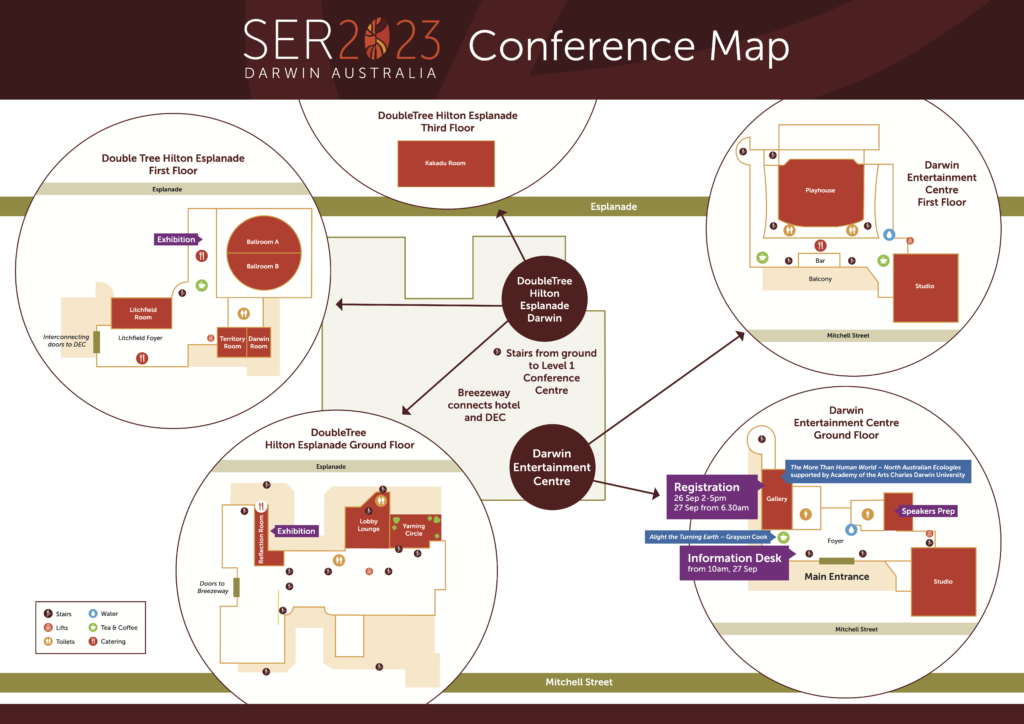
  • Venue Information

    Venue-Map

    Uploading My Presentation

    • I have forgotten my logins! What do I do ?
      • Contact the help desk and we will resend them to you.

    • How do I know if it's uploaded?
      • If you can see your filename under the "Your Files" section, then it has successfully uploaded. If you don't see your file, then there has been an issue with the upload. It could be due to file size or internet connection. Try refreshing your browser and uploading again. If it's still not visible you can contact the help desk and our support staff can help with the upload

    • I have uploaded, what do I do now ?
      • Make sure you have answered the post-upload questions as these pertain to how your info is displayed on the dementia Eventranet ebsite. Ie. Do you allow delegates to download a PDF or contact your via email or social media. If you have allowed such permissions, make sure your details are up to date. You can see what details we have in the system after you have logged in to your portal and navigated to "Update My Details".

    • I want to upload my own PDF for download or I want to upload multiple files
      • Your portal allows for multiple uploads. So if you would like submit your own PDF version of your poster or you have used media in your poster and you need to upload the files in addition to your poster, please do so through the portal at the same time as your poster upload.

    • I uploaded, where's my preview!
      • We convert all the posters to html so it can be seen on the website. Please allow up to 72hrs for your poster to be made available for preview. You will receive an email from us letting you know that it's ready.

    • Help! Something looks a little different !
      • Sometimes formatting shifts occur and we can definitely fix them up! Contact the help desk and let them know the issue and what slide etc. and we will reconvert !

    Speakers Prep

    Editing My Information

    Onsite

    • What do I do when I get to site ?
      • If you haven't uploaded your files, come to see us in the speakers prep room at least 3 hrs before your session to load manually.

    Post Event

    Help Desk

    Contact the conference organiser for any questions pertaining to the event itself, if you have questions for Paperless Events please contact the help desk;

    AIFS@paperlessevents.com.au